Monday, 27 February 2012

Send Files Through Facebook ( Instantly Send Files To Your Friends)


NOW SHARE YOUR FILES IN THE FACEBOOK.

Hello friendz. do u know we can send files through facebook other than just chatting and everything??
yes, by using an application called chat send. 


Here is the process about using it:


Download the file by using this link given below: Chatsend

now install it in your pc.(dont forget to close the browser before installing it).

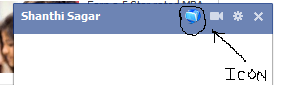
after installing now open the facebook and select the person u wanna send a file and open the chat box. now u can see an icon in the top of that chat box as shown in the image below:


It opens a new window asking for you to upload the file. click on the image in the middle and upload the file.

You can also keep a password to it after uploading if you wanted so that even if someone knows the link cannot download it or you can leave it empty.
click one time transfer if you are sending that file to only one person.


After that it gives you a unique link as shown below. just click on it.


It will copy the link itself to that person's chat box you wanna send the file.


Now, the rest over is to open that link by that person and download the file.

you can also even know whether is that person downloading that file presently or not. just click the arrow mark at the bottom of the image.


So, enjoy sending the files to your friends.


note: The window mus be kept opened until the person downloads that file you are sending. when you close the window the file uploaded will be deleted by itself.

Share Your Pc Internet Connection with Other Devices by Using Connectify Software


You might be using a Hi Speed dongle for 3G  internet
access or a Broadband Connection using LAN Cable,
if you do not have a  Router installed in your home th
an you cannot access a Internet Connection on  your 
other handheld devices, but with Connectify this can
be connected easily with just one click.Well it worked
good but now I tried and came across some limitations
so I found another good one and its working simply
fine for me.


Follow The Instructions Below:-


1. Download Connectify Software for your PC.


2. Now after you have downloaded it, just install it
in a normal way and after successful installation 
you will be promoted to Reboot your computer do
that its important.


3. Now after Reboot it will automatically start and
show window like in the image above, just change
the name if you want too and add a 8 digits password.


4. Now choose the internet connection you wanna share
I am sharing my MTS 3G Dongle internet connection with
my iPhone.


5. So after you have chosen the connection, just pick up
how you wanna share your connection the best one is 
Wi-Fi but if you don’t have than you can choose Bluetooth
or any other mentioned.


6. Now just click on Start Hotspot and you Hotspot is
ready to be searched and to be connected, just open
your mobile Wi-Fi settings menu and search for avail
able connection and you will see the above name you
have mentioned dis playing just hit that and enter the
8 digits password you kept.


7. Now you are connected with your Internet Connection,
so now you can browse or do anything you wanted to do,
well you can see how many people are connected in the
second window in the above image, that’s just for keeping
track on people using your Wi-Fi connection.


Features:


1) Create a wi-fi hotspot from your pc/laptop in an instant.
2) Created hotspots require WPA passphrases for better 
security.
3) Connect and sync your wi-fi enabled devices without 
using cords, blue tooth, or wireless router.
4) Works with Windows 7 (only).


Download Connectify Software.


If you like this post share with your freinds and +1 
to this. Keep Contact with us.

Facebook Photo Zoom - Zoom Images In Facebook with Mouse Hover


FB Photo Zoom is a simple, light-weight extension that
integrates directly into FB so you can see the larger im
ages of photo albums,profile photos and more whenev
er you hover over a zoomable image!


So as soon as you will install this extension you can 
visit Facebook and when ever you see any image u
wanna get a broad view off than simply hover on
that image and you would be able to do that really
easily.


So you will not be able to see the mouse in the above
image as its not captured during this shot their but I
just hovered on the above small image and I got a bi
gger preview right on the side of it. So this extension
works quit well and it also comes with a settings menu
which you can tweak like below.


So as you can see its settings menu also contain one
option saying Disable Facebook’s “Photo Theater” 
well I just tried it out but that option is not working
so else everything just works fine so you can figure
that out.


Add FB Photo Zoom To Your Chrome , Click the below link:-


FB Photo Zoom


ADD FB Photo Zoom To your Firefox and Safari, Click the Below link:-


FB Photo Zoom


Note:- This Fb photo Zoom is available for chrome,
firefox and safari only from this blog.


Plz +1 d this and share .

Gmail Key Board Shortcuts


Hi Friends Today I will Gives You KeyBoard Shortcuts
For Gmail to get the fast access of the Gmail.If you Like


Before Using this Keyboard Shortcuts you must enable 
the Keyboard Shortcuts On .


Here Is the Procedure for enable :-


1) Login to your Gmail account and click on Settings.


2) Under the General tab go to the option Keyboard 
shortcuts (from here you can turn them on or off), se
lect Keyboard shortcuts on and click Save Changes.


KeyBoard Shortcuts : -


Applications:


c : Compose
/ :  Search
q : Focus chat Contact Search
? : Open Shortcut Help


Actions :-


a : Reply all
r : Reply
x : Select Conversation
s : Start Conversation
y : Remove Label
e : Archive
m : Ignore Conversation
! : Report As Spam
# : Move To Trash
f : Forward
<Shift> + n : Update Conversation
<Esc>: Focus Last Chat Mole
z : Undo Last Action
. : Open More Action Menu
<Shift>+i : Mark as read
<Shift>+u : Mark As Unread
<Ctrl>+ s : Save Draft.


Navigation :-


u : Back to threadlist
k/j : Newer/older conversation
<Enter> : Open Conversation; collapse/expand coversation
p/n : Read previous/next message.


Jumping :-


g then i : Go to Inbox
g then s : Go to Starred Conversations.
g then t : Go to Sent messages
g then d : Go to Drafts.
g then a : Go to all mail
g then c : Go to Contacts


Threadlist Selection:


* then a : Select all Conversations.
* then n : De Select all Conversations.
* then r :  Select Read Conversations.
* then u : Select Unread Conversations.
* then s : Select starred Conversations.
* then t : Select unstarred Conversations.

PAGEVIEWS